Use the task board
Tasks is one board for the whole studio, across every project, and for the studio itself. Clients never see it.
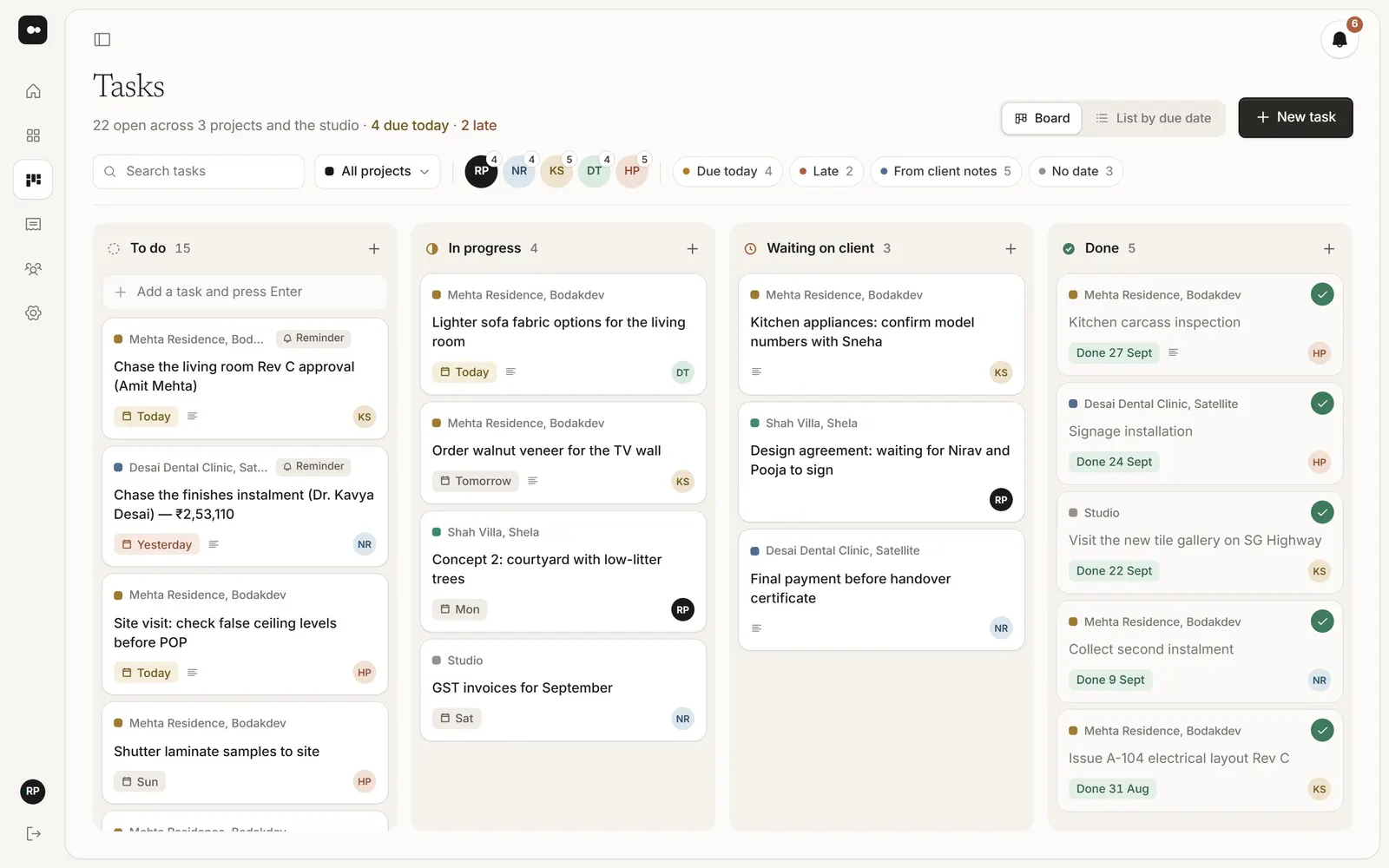
1Add a task
Type in Add a task at the top of a column and press Enter, or choose New task. Tasks also come from client notes (+ Task) and from reminders on their day.
2Move it along
Drag a card between To do, In progress, Waiting on client and Done. Or switch to List by due date.
3Open a task
Click a card to open it. Set the status, who it’s Assigned to and when it’s Due (Today, Tomorrow, Friday, Next Monday or a date), and add details.
- Client notes: the notes it came from, with the picture. Mark each done or reply to the client.
- Images: attach site photos or references, JPG, PNG or WebP.
- Team comments: talk it through, reply, and @mention someone. Only your team sees these.
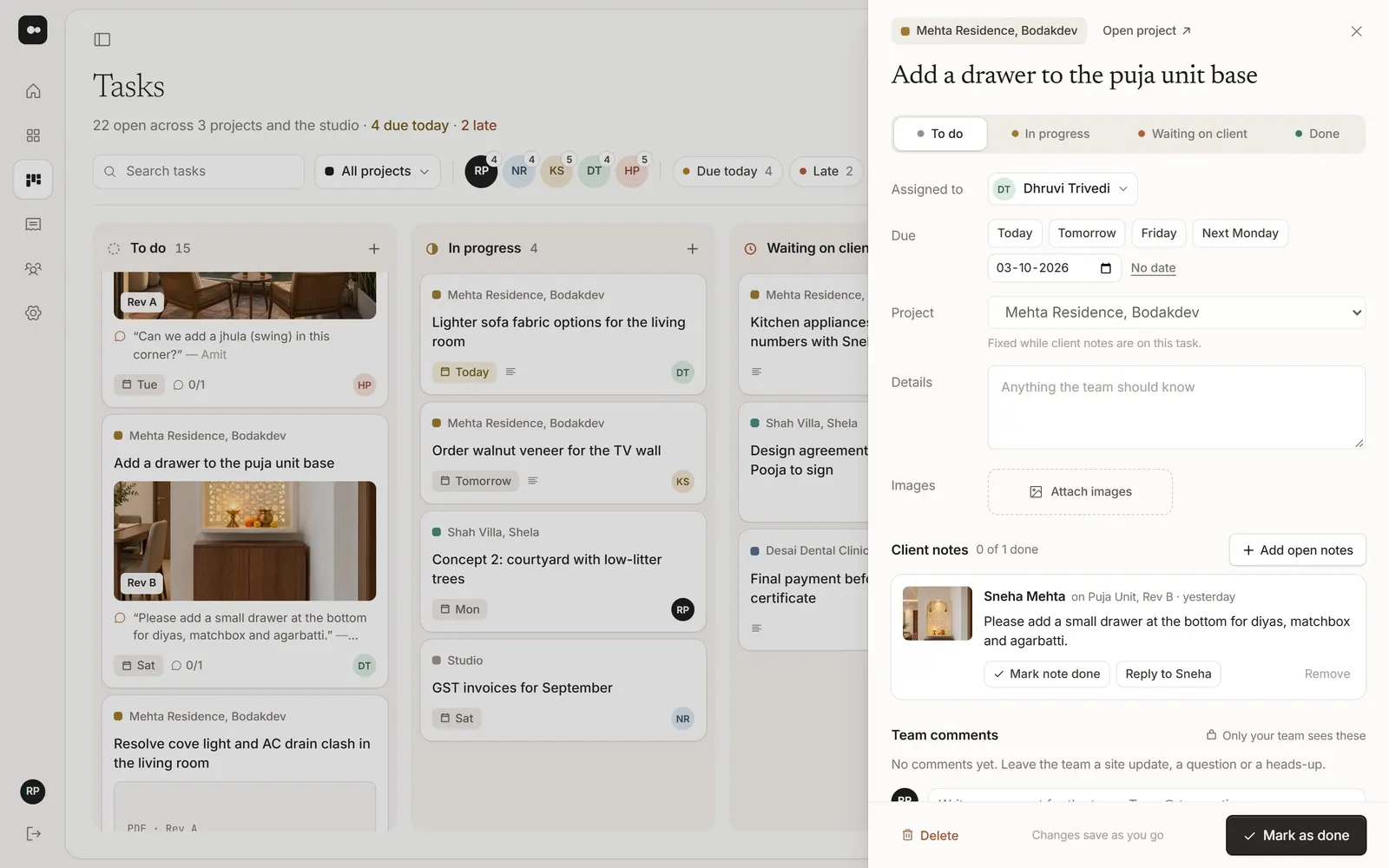
4Finish it
Choose Mark as done. If the task has client notes, Plott offers to close them with a reply your client sees.
Tip: Filter the board by project, by person, or with the quick filters, like what’s due today.
Was this article helpful?