Make a GST quote
Quotes are made next to the project, on your letterhead, with GST worked out for you.
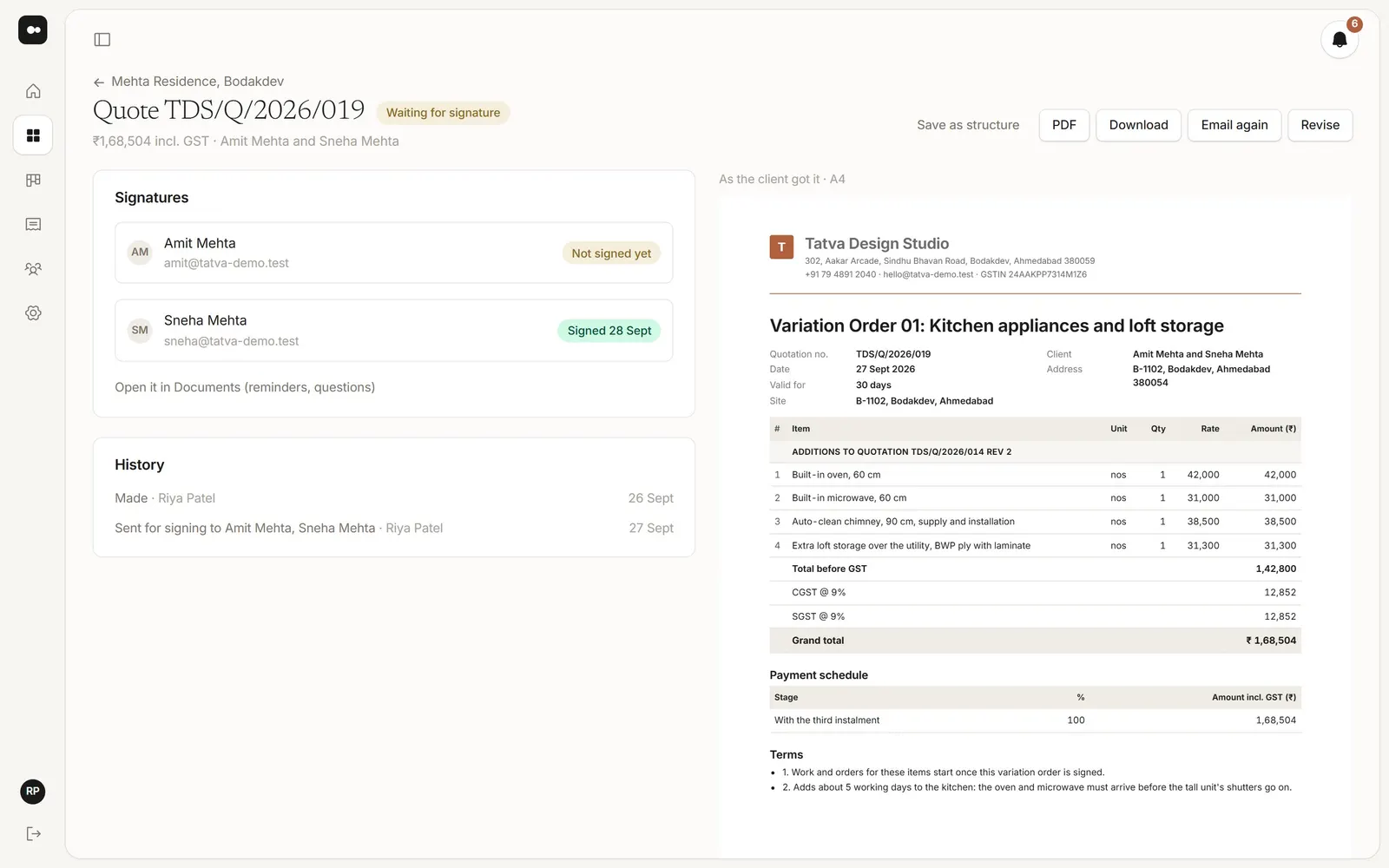
1Start the quote
In the project’s Quotes & invoices tab, choose + New, then Quote. Start from one of your saved structures, or from a blank one with your studio’s usual terms.
2Add sections and items
Use + Section for each part of the work, like Modular kitchen, and + Item for each line: what it is, the SAC code, quantity and rate. Click any line on the live A4 preview to edit it.
3GST
Leave Show GST on and set the rate; interior works are usually 18%. Plott charges CGST and SGST when the client is in your state and IGST when they’re in another, from your GSTIN and the Place of supply. Add the client’s GSTIN only if they’re a GST-registered business.
Not registered for GST? Switch it off, and no GST is added or shown.
4Payment schedule and terms
Under Payment schedule, add a + Stage for each payment, like “On carcass installation” with its percent. Each stage becomes one invoice, with one click, once the quote is sent. Terms start from your usual terms in Settings.
5Send it
Email this quote, or Send for signing: each person signs on their phone, the same as Documents, and Plott adds a signing page at the end. Once sent, a quote can’t be edited; make a new revision, and say what changed so your client sees why.