Make a presentation
A presentation is a set of slides made from the pictures already in a project. It is for your studio to present; clients don’t see it on their link.
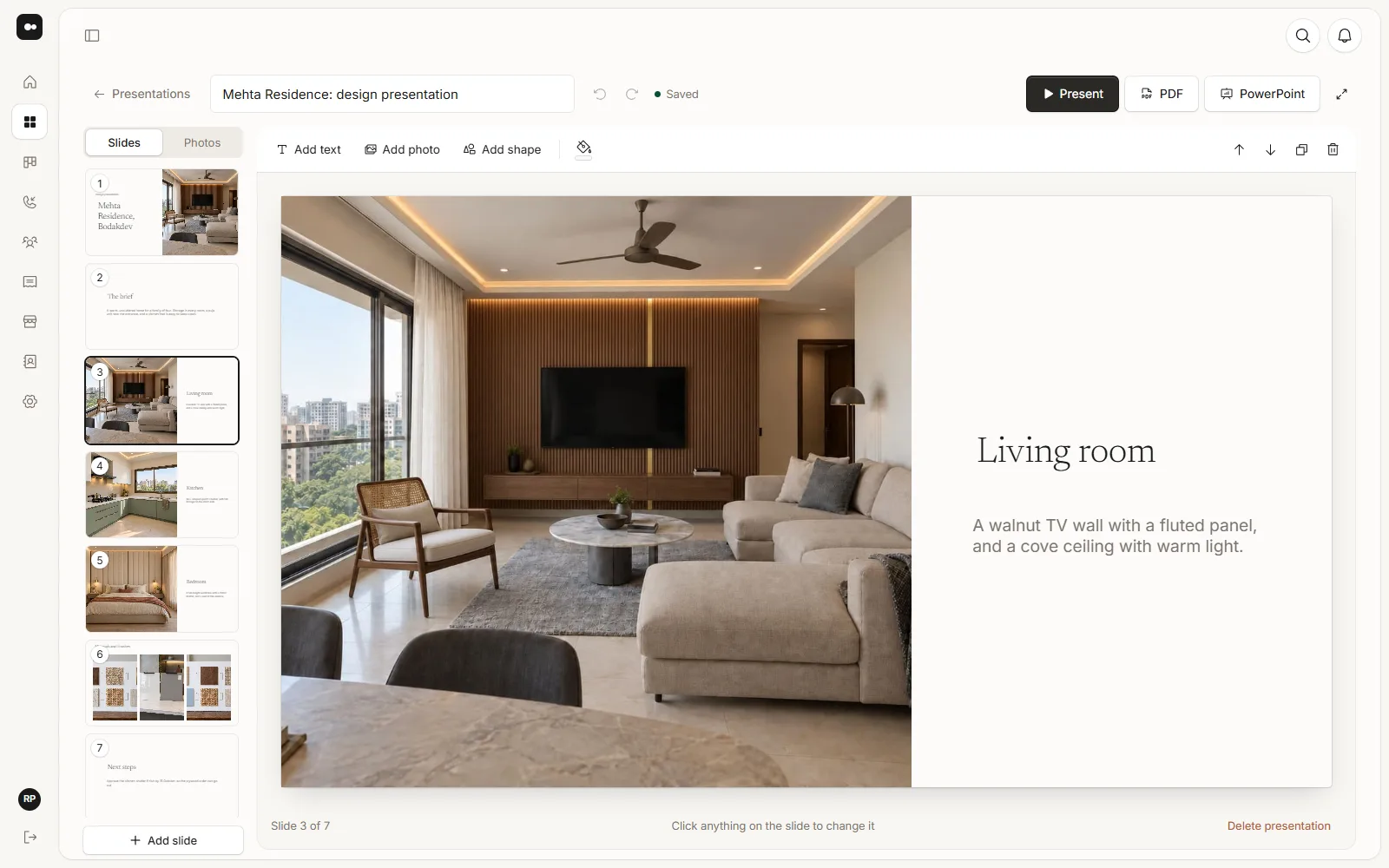
1Start one
In the project’s Presentations tab, choose New presentation, then pick what to start from: Design presentation, Two options, Photo walkthrough or Blank.
2Put the pictures in
Click an empty picture frame and the project’s pictures open beside the slide. Click one to place it. Add photo puts another picture on the slide, and Crop chooses which part of it shows.
A slide takes pictures only. To use a PDF sheet, save it as a JPG or PNG in the Drive folder and it appears with the others.
3Write on the slide
Click any text to change it, or choose Add text for a new piece. With text selected you can change its font, size, colour and alignment, make it bold or italic, and choose how it arrives when you present.
4Shapes and colour
Add shape puts a rectangle, a circle or a line on the slide. The paint bucket next to it sets the slide’s colour.
5Add and arrange slides
Add slide offers the layouts: Cover, Picture and text, One picture, Two pictures, Three pictures, Text only and Blank. The buttons above the slide move it earlier or later, duplicate it or delete it.