How folders become sections
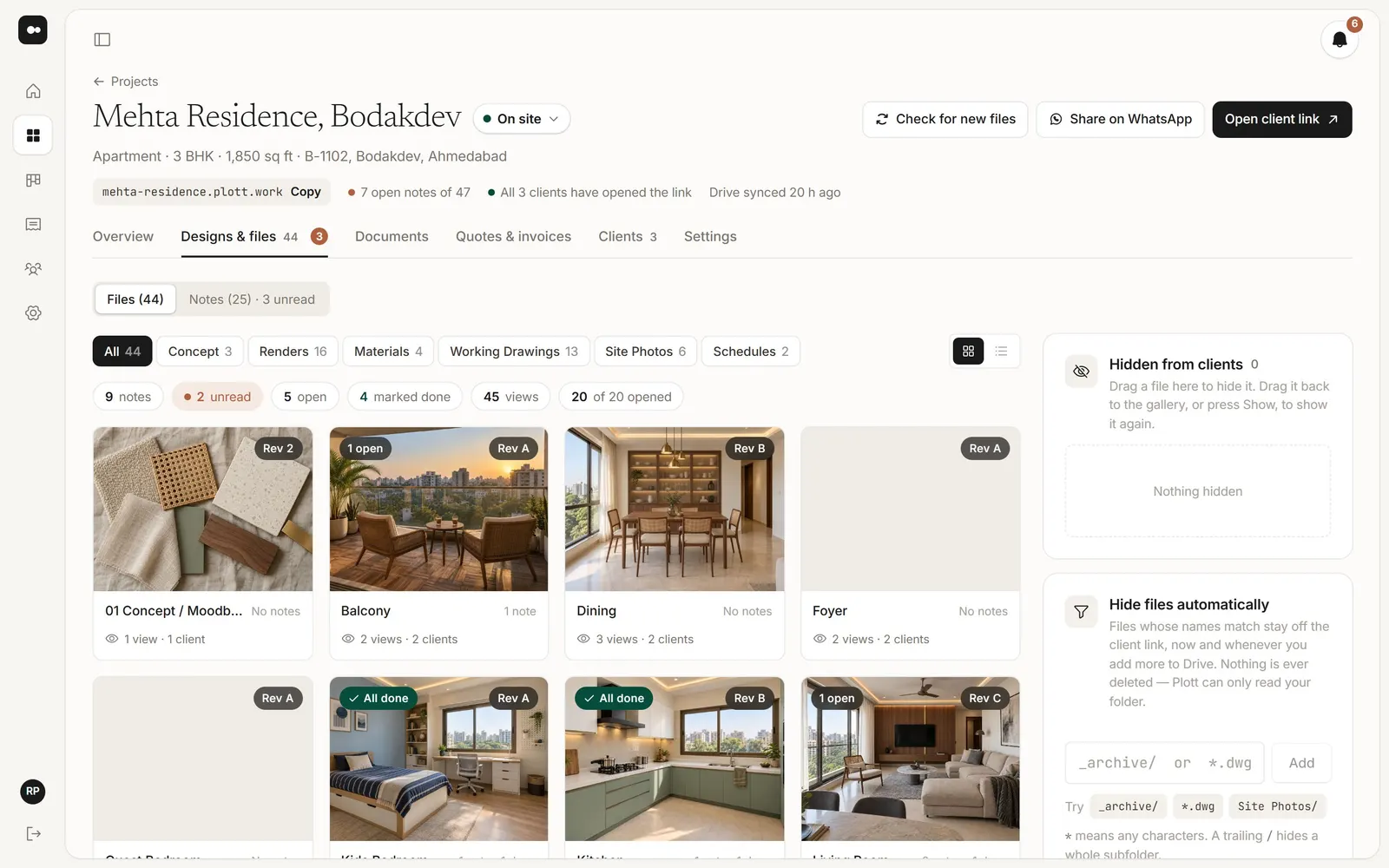
Studios already sort a project into folders: concept, renders, materials, working drawings. Plott uses those folders as the sections of your client’s page.
Mehta Residence/
  01 Concept/
  02 Renders/
  03 Materials/
  04 Working Drawings/
Your client sees each folder as a section, with a bar to jump between them. Files in the top folder show under All.
1Hide a file
In Designs & files, drag a file to Hidden from clients. It stays in your Drive but drops off the client link. Drag it back, or press Show, to show it again.
2Hide files automatically
Some files should never reach a client, like working files or an archive folder. In the project’s Settings, under Hide files automatically, add a rule such as _archive/ or *.dwg. Files whose names match stay off the client link, now and whenever you add more to Drive.
*means any characters.- A trailing
/hides a whole folder. - Rules can also come from a
.plottignorefile in your folder.
3Choose a layout
In the project’s Settings, under Layout, pick how the page looks: columns with each picture in its own shape, even rows, even boxes side by side, two across led by one full-width piece, or one piece per row as big as the page.