Send your first client link
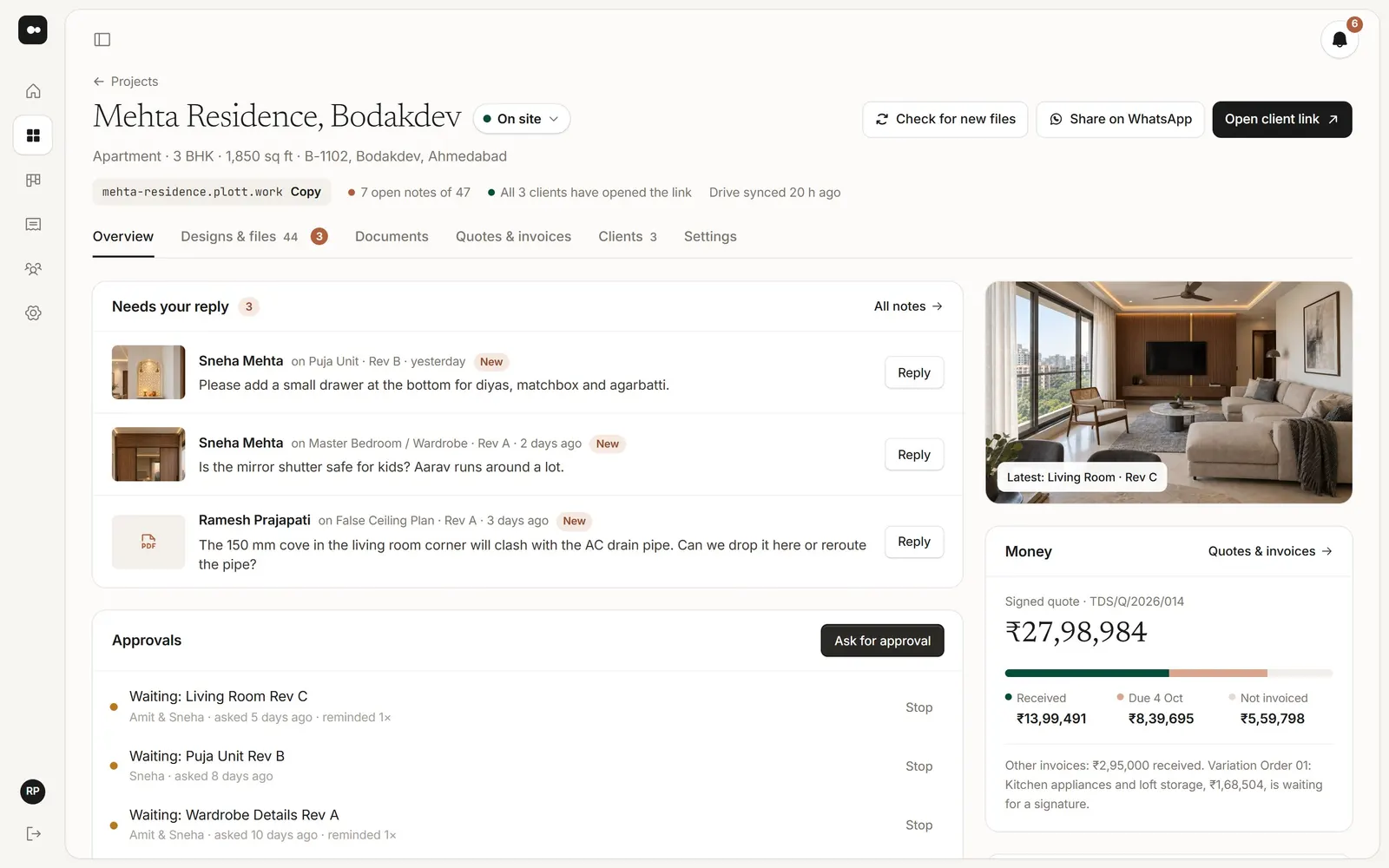
A client link is one private page for one project. Your client opens it on their phone or laptop to see the designs, leave notes, approve versions, sign documents and see their invoices. Here’s how to send the first one.
1Start a new project
Go to Projects and choose New project. Only the project name and the client are needed; everything else can wait.
Pick your client from Contacts, or add someone new with their name, email and phone. The email is how they sign in to the project link, and it’s saved to Contacts for next time.
2Connect your Drive folder
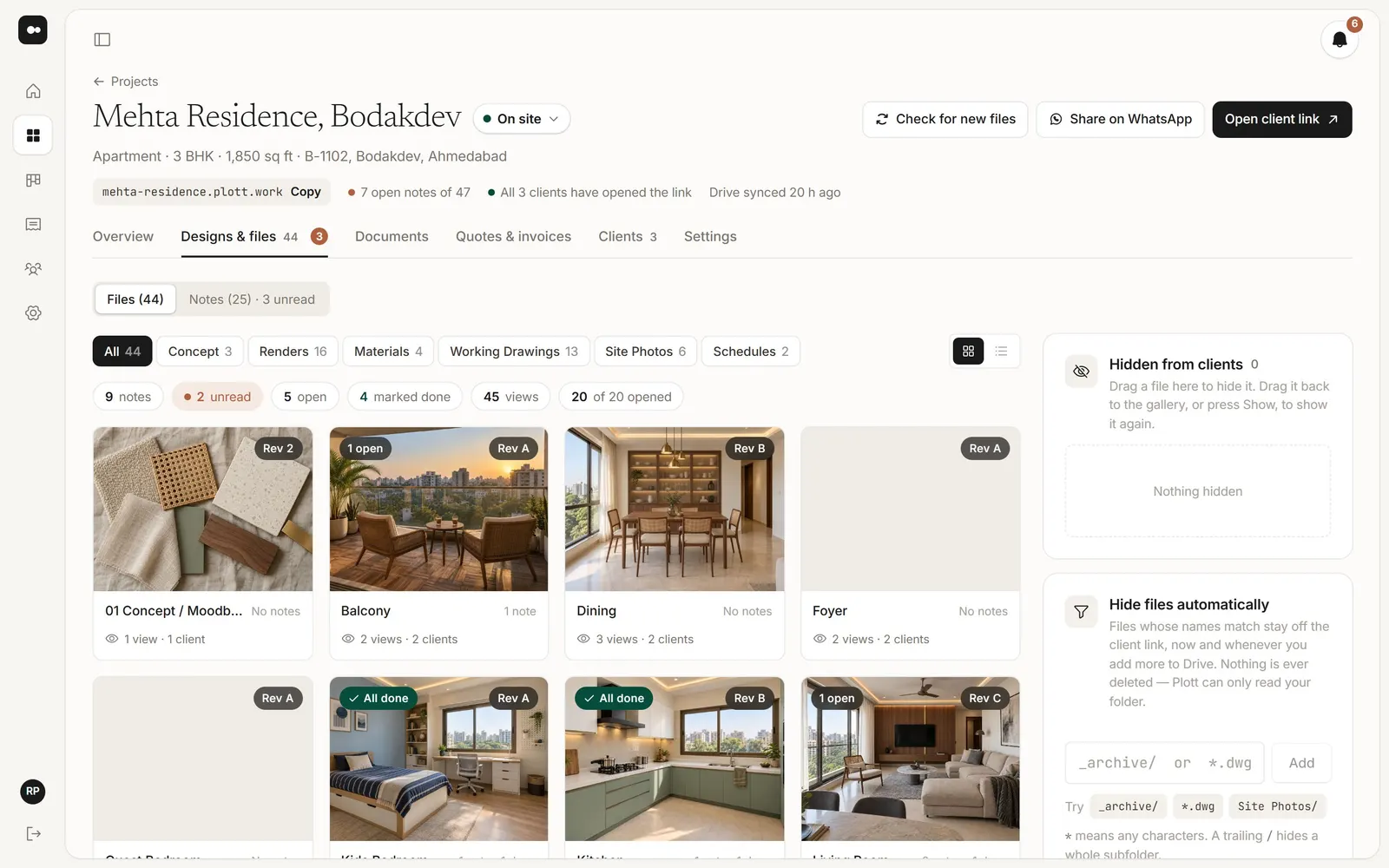
In Google Drive, open the project folder’s Share menu and add Plott’s address as a Viewer. Plott shows you the address to use.
Then open the folder in Drive, copy the address from your browser bar and paste it into Plott. Your client sees the designs in this folder, and new versions as you add them.
rev-A, rev-B and so on, like living-room_rev-B.jpg. Plott stacks them as versions, and your client always sees the newest.Designs not ready yet? Create the project now and connect a folder when they are.
3Check the project link
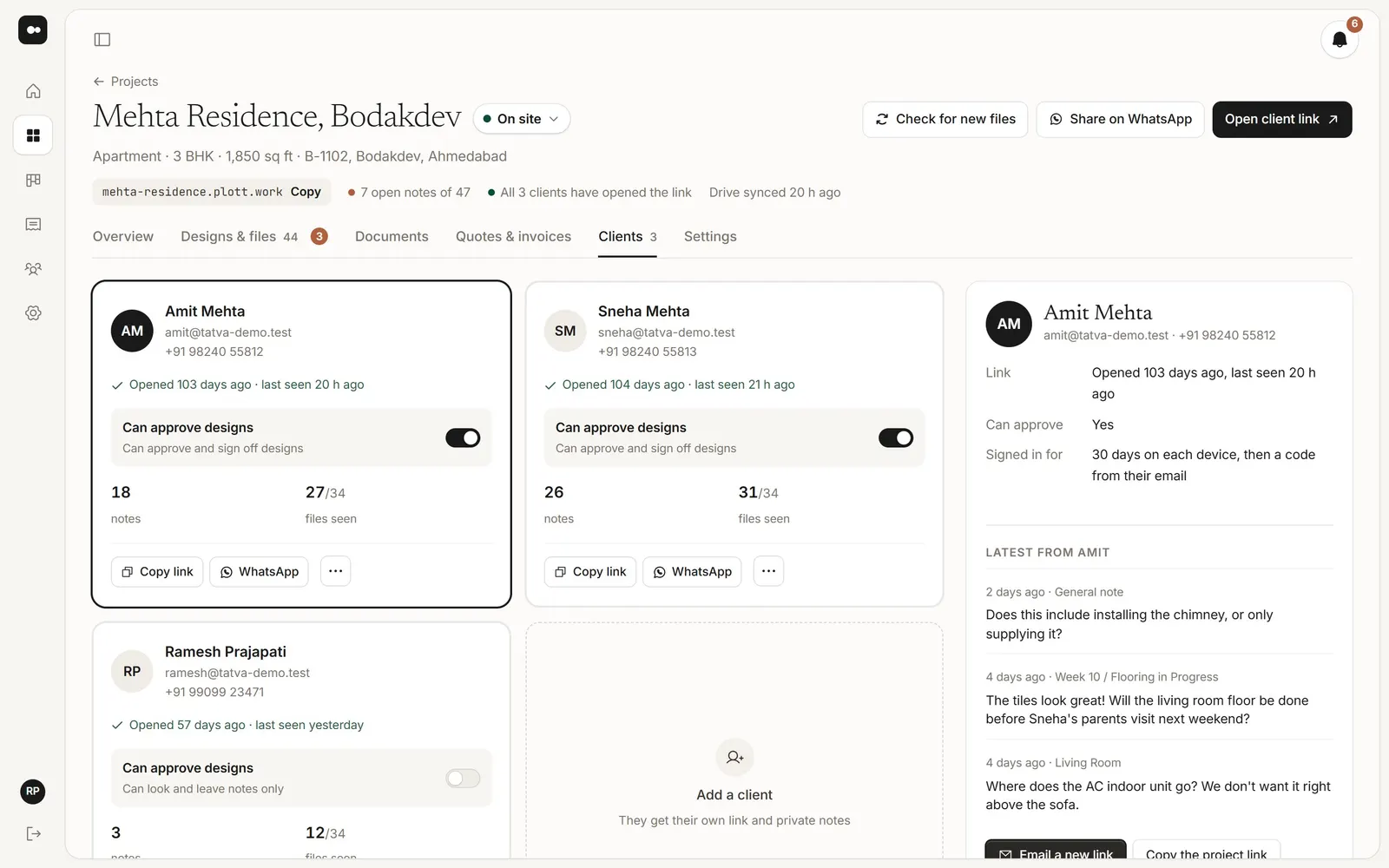
Every project gets a short address your client will recognise, like mehta-residence.plott.work. You can change it in the project’s Settings, under Web address; once saved, the old link stops working.
4Send it to your client
Open the project’s Clients tab, choose ⋯ beside your client, then Email them the link, or share it on WhatsApp. They don’t need an app or a password: the link signs them in.